3. Install operating systems
A customer's server is a copy of a template. PNLCS needs at least one template before it can sell anything. There are three ways to get them, and they can be mixed.
The image library (recommended)
Setup → Servers → Images (next to a Proxmox server) lists ready-made systems and installs them on the host through the API — no shell needed:
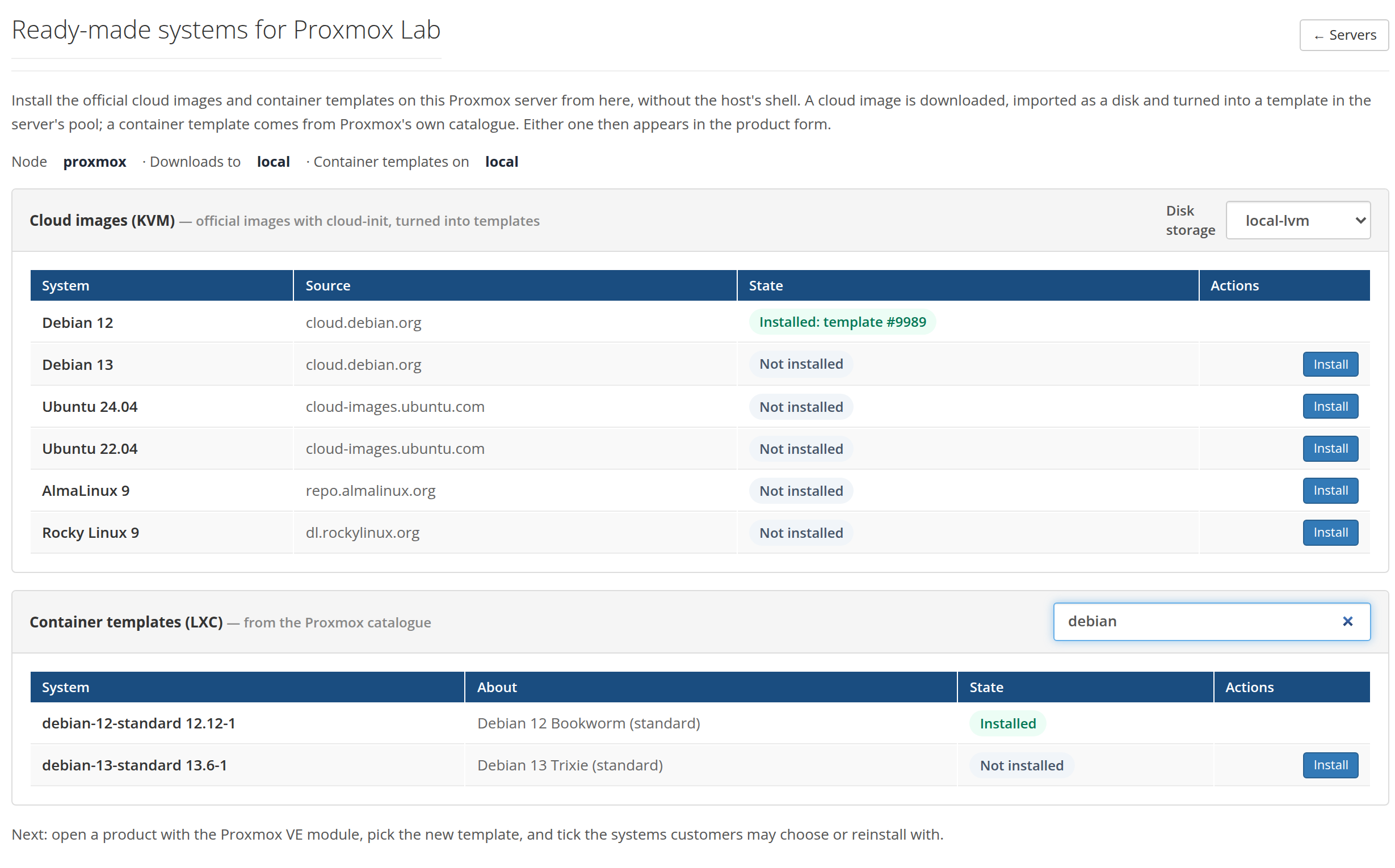
Cloud images (KVM). The official images of Debian 12, Debian 13, Ubuntu 24.04, Ubuntu 22.04, AlmaLinux 9 and Rocky Linux 9, straight from their publishers. Install does, on the Proxmox host:
- downloads the image into the storage that holds import content
(
local), asdebian-12.qcow2and so on; - creates a machine named
debian-12-cloudin the server's pool, imports the image as its disk on the Disk storage chosen at the top, adds a cloud-init drive, a serial console and the guest agent; - turns it into a template, tagged
pnlcs-image.
The row shows Downloading 57%, Importing the disk, Making the template and finally Installed: template #9999. You may leave the page: the scheduler finishes the job. With a VM id range on the server, the template takes the highest free id in it, so it stays apart from customer servers. Measured on Proxmox VE 9.1: Debian 12 was downloaded, imported and a template in about a minute.
Container templates (LXC). Proxmox's own appliance catalogue: every system template for amd64 (Debian, Ubuntu, AlmaLinux, Rocky, Alpine, Fedora, Arch, …), with a filter. Install downloads it into the storage that holds container templates.
Rights
The library needs Datastore.AllocateTemplate on the download storage
and Sys.AccessNetwork on the node. Without them the page shows a yellow
box with the three commands that grant them
(step 1).
The templates appear in the product form at once, under their friendly names (Debian 12, Ubuntu 24.04…).
The recipes from the Test report
Pressing Test on the server prints, under Ready-made templates, one shell block per system. Run a block on the Proxmox host to get the same template by hand — useful on older Proxmox versions without the import content type, or if you do not want to give the token the library's rights:
# Debian 12
ID=$(pvesh get /cluster/nextid); IMG=/var/lib/vz/template/iso/debian-12-genericcloud-amd64.qcow2
wget -q -O $IMG https://cloud.debian.org/images/cloud/bookworm/latest/debian-12-genericcloud-amd64.qcow2
qm create $ID --name debian-12-cloud --ostype l26 --memory 1024 --cores 1 --agent enabled=1 --serial0 socket --vga serial0 --net0 virtio,bridge=vmbr0 --scsihw virtio-scsi-single --pool pnlcs
qm set $ID --scsi0 local-lvm:0,import-from=$IMG,iothread=1,discard=on --ide2 local-lvm:cloudinit --boot order=scsi0
qm template $ID && echo "Debian 12 is template $ID"
A template made this way carries the same name, so the library shows it as installed too.
Your own templates
Any KVM template the token can see works, if it:
- has cloud-init installed and a cloud-init drive (PNLCS adds the drive when it is missing);
- is in the server's pool (
pveum pool modify pnlcs --vms <id>), or otherwise visible to the token; - is on storage the node you sell from can clone from — in a cluster, a template on local storage can only be cloned on its own node, so either set the node or keep templates on shared storage.
PNLCS sets the root password, the address, the hostname and the disk size through cloud-init, and grows the disk to the product's size. With the vendor snippet the customer can sign in over SSH with that password.
Installer ISOs
A KVM product can also boot an ISO instead of cloning a template, for a system without a cloud image. Installing from it needs the machine's screen: the customer panel has no browser console yet, so today that means you give the customer console access some other way, or install it for them. PNLCS cannot set a password or an address inside a system it did not install.
Next: create the product.